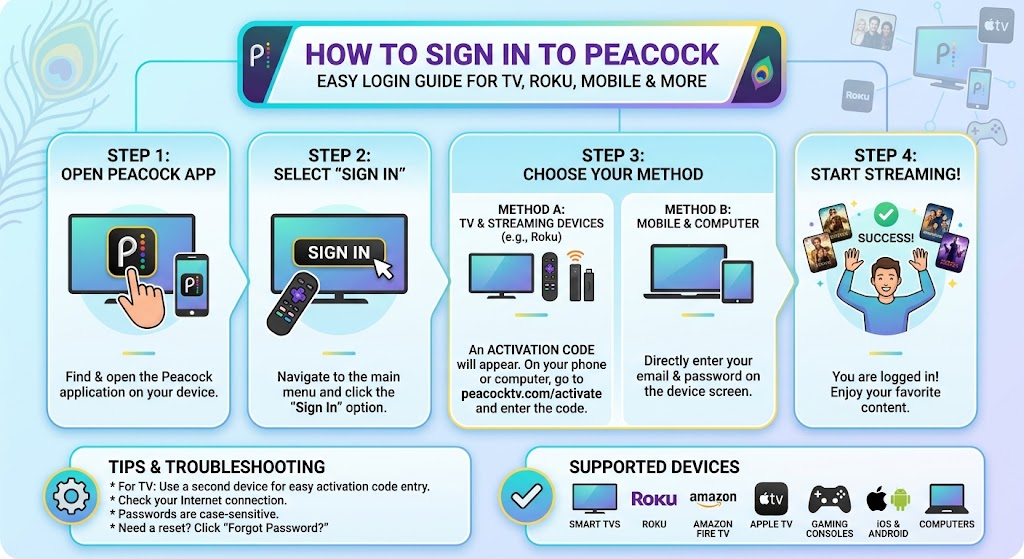
How to Sign In to Peacock: Easy Login Guide for TV, Roku & More
If you want to watch movies, shows, sports, or Peacock Originals, you first need access to your account. Learning how to sign in to Peacock is simple once you know which device you are using. You can log in through a web browser, mobile device, smart TV, streaming player, or supported cable service. Peacock supports many popular devices, including Roku, Xfinity devices, smart TVs, phones, tablets, and computers.
The login process is usually quick. You need the email address linked to your Peacock account and your password. Some provider customers may have an additional activation step. This guide explains each method in simple language. It also covers password problems, provider access, Roku login, and common errors. By the end, you should know exactly what to do when you want to start streaming.
Peacock Account Details at a Glance
| Account Detail | Information |
| Main service | Peacock |
| Main login | Email address and password |
| Website access | Peacock website |
| Mobile access | iPhone, iPad, and Android devices |
| TV access | Supported smart TVs and streaming devices |
| Roku access | Supported Roku devices and Roku TV |
| Xfinity access | Eligible Xfinity customers |
| Spectrum access | Eligible Spectrum TV customers |
| Password help | Password reset through Peacock |
| Supported profiles | Multiple viewer profiles are available |
| Main login purpose | Access movies, shows, sports, and other Peacock content |
Your exact options can depend on your subscription and device. Peacock currently lists Roku and Xfinity among its supported platforms.
How to Sign In to Peacock on a Web Browser
The easiest way to access Peacock is often through a computer browser. Start by opening the Peacock website on your computer. Look for the Sign In option near the top of the page. Select it to open the account login screen. Peacock says users should enter their registered email address and password. Passwords are case sensitive, so check every letter carefully.
If your information is correct, select the login button. You should then reach your Peacock account and begin browsing available content. If you see an error, check your email address first. A small spelling mistake can prevent access. Also check whether Caps Lock is enabled. Using the correct account email is especially important if you have more than one email address.
How to Sign In to Peacock on a Phone
You can also use Peacock on a compatible smartphone or tablet. First, install the Peacock app from your device’s official app store. Open the application after installation. Look for the Sign In button on the opening screen. Enter the email address connected to your Peacock account. Then enter your password and continue.
This is another simple way to understand how to sign in to Peacock when you are away from your television. Peacock supports current versions of iOS and Android within its listed device requirements.
If the app does not accept your information, avoid creating another account right away. You may already have an active subscription. Try the password recovery option first. This can help you avoid accidentally creating a second account with separate billing.
How to Sign In to Peacock on a Smart TV
Smart TV login may look slightly different from computer login. First, make sure your television supports Peacock. Open your TV’s app store or application search area. Search for Peacock and install the official app. Once installation finishes, open the application.
If you already have an account, choose Sign In. You can then follow the login instructions shown on your television. Peacock’s current Smart TV instructions tell existing customers to select the Sign In option after opening the app.
Take your time when entering information with a TV remote. Typing with a remote can be slower than using a phone or keyboard. If your television provides an activation method, follow the on-screen instructions carefully. Do not share your password with another person while completing the login process.
How to Sign In to Peacock on Roku
If you have Roku, the process is straightforward. First, open your Roku home screen and find the Streaming Store. Search for Peacock and select the Peacock application. Choose Add App to install it. After the installation finishes, open Peacock.
If you already have a Peacock account, look for the sign-in option and follow the instructions displayed on your Roku screen. Peacock officially supports several Roku models, including supported Roku players and Roku TV devices.
Knowing how to sign in to Peacock on Roku can save time when setting up a new streaming device. If you are not subscribed yet, Roku can also provide an option to select a plan and complete signup. Existing customers should use their current account rather than creating another one.
How to Sign In to Peacock With Spectrum
Eligible Spectrum TV customers may receive Peacock Premium as part of certain qualifying packages. The exact benefit depends on the Spectrum package. Peacock currently explains that eligible Spectrum TV customers can activate the included benefit through Spectrum.
To learn how to sign in to Peacock with Spectrum, first make sure your Spectrum plan qualifies. You may need to activate the Peacock benefit before normal Peacock account access works. Follow the activation instructions provided through your eligible Spectrum account. If you already have a Peacock subscription billed directly by Peacock, activating a Spectrum benefit can affect your existing plan.
This is important because you do not want to assume your Spectrum login automatically replaces your Peacock account. Provider benefits often require an activation or account-linking step.
How to Sign In to Peacock With Xfinity
Eligible Xfinity customers can connect their Xfinity service with a Peacock account. Peacock explains that eligible customers can link their accounts through the Peacock application on an X1 or Flex device.
For how to sign in to Peacock with Xfinity, start by opening the Peacock application on your eligible Xfinity device. You may be asked to create a Peacock account or log in to an existing one. Follow the instructions shown on the screen to connect the accounts.
Once the account is linked, you can watch Peacock on supported devices. You do not have to stay limited to the Xfinity set-top box. Peacock confirms that linked eligible Xfinity customers can use supported devices for streaming.
How to Sign In to Peacock Without Your Password
Forgetting a password is common. Fortunately, you do not need to create a new account. Go to the Peacock login area and choose the password recovery option. Enter the email address associated with your account. Peacock will send instructions to reset your password.
When learning how to sign in to Peacock after forgetting your password, check your email inbox carefully. Also check your spam or junk folder if the message does not appear quickly. Use the email address you originally used for Peacock.
Peacock says its password reset link is available for a limited period and can be used once. After resetting your password, return to the login page and enter your updated details. Store the new password somewhere secure so you can find it later.
What to Do If Peacock Will Not Let You Sign In
Login problems can happen even when you believe your information is correct. Start by checking your email address. Make sure there are no extra spaces or spelling errors. Next, carefully enter your password. Remember that passwords are case sensitive.
If that does not work, try resetting the password. You can also close and reopen the Peacock app. On a browser, refreshing the page or trying another supported browser may help. For TV devices, restarting the device can sometimes clear a temporary problem.
If you are still having trouble, check whether your Peacock account is active. Provider-based subscriptions can also require an activation step. This matters for customers using services such as Spectrum or Xfinity. Checking the account source can help you identify the correct login route.
Can You Use Peacock on Multiple Devices?
Yes, Peacock is designed to work across many supported platforms. Its current supported-device list includes computers, phones, tablets, smart TVs, Roku, game consoles, Xfinity devices, and other streaming platforms.
After you complete how to sign in to Peacock on one supported device, you can use your account on other supported devices. You may need to enter your login details again on a new device. This is normal and helps connect the device to your account.
Before installing Peacock everywhere, check whether your device is supported. Older hardware may not meet current requirements. Peacock maintains a current list of supported platforms, so checking that list can save you time.
How to Check Which Email You Used for Peacock
Sometimes the real problem is not your password. You may simply be using the wrong email address. Think about which email you used when you first created your Peacock account. Search your inbox for Peacock messages. Account updates and subscription emails can help identify the address.
If you are already signed in on another device, Peacock says you can find your account email inside the application. This can be useful when you have several email accounts.
Once you find the correct email, try logging in again. This small check can solve many login problems without requiring a password reset. It is also a good idea to use an email address you regularly access so you can receive account and password messages.
Common Peacock Login Mistakes to Avoid
Many login problems come from simple mistakes. One common issue is entering an email address that was never connected to the Peacock account. Another is using an old password after changing it. Passwords are also case sensitive, so uppercase and lowercase letters matter.
When learning how to sign in to Peacock, avoid creating a second account just because the first login fails. You could accidentally create confusion about your subscription. Instead, check your email, reset your password, and confirm how your subscription was purchased.
Provider customers should also confirm whether they need to activate a Peacock benefit. Spectrum and Xfinity customers may have different account-linking steps. Following the correct provider process can make the setup much easier.
Peacock Login Tips for a Better Streaming Experience
A few simple habits can make account access easier. First, use an email address you check often. This makes password recovery much easier. Second, choose a strong password that you can manage safely. Peacock recommends using a password with letters and numbers and avoiding personal information.
When you finish how to sign in to Peacock, keep your account details private. Do not send your password through public messages or share it on social media. If you use a shared device, consider signing out when appropriate.
It is also useful to keep your Peacock app updated. Older app versions can sometimes behave differently from current versions. Finally, make sure your streaming device is supported. These small steps can prevent many avoidable login problems.
Frequently Asked Questions
1. How do I sign in to Peacock?
Open Peacock on your browser or supported device. Select Sign In and enter your registered email address and password. If you forgot your password, use the password recovery option. Peacock’s official help information confirms that your registered email and password are used for normal account access.
2. How do I sign in to Peacock on Roku?
Install the Peacock app from the Roku Streaming Store. Open the app after installation and choose the sign-in option. Then follow the instructions displayed on your Roku screen. Peacock lists several Roku devices among its supported platforms.
3. How do I sign in to Peacock with Spectrum?
Eligible Spectrum TV customers may need to activate their Peacock benefit first. After activation, follow the Peacock account instructions to access the service. Eligibility depends on the Spectrum package.
4. How do I sign in to Peacock with Xfinity?
Eligible Xfinity customers can link their Xfinity account through the Peacock app on supported X1 or Flex devices. You can create a Peacock account or connect an existing account during the process.
5. Why can’t I sign in to Peacock?
Check your email address and password first. Make sure your password uses the correct capitalization. If you still cannot access your account, reset your password using the email connected to Peacock.
6. Can I watch Peacock after signing in on another device?
Yes. Peacock supports many different devices and platforms. Once your account is active, you can use it on supported phones, computers, TVs, Roku devices, game consoles, and other compatible platforms.
Conclusion
Knowing how to sign in to Peacock makes it easier to start watching your favorite entertainment without unnecessary delays. The basic process only requires your Peacock email and password. However, the exact steps can change depending on whether you use a browser, phone, smart TV, Roku, Spectrum, or Xfinity.
If you cannot log in, start with the basics. Check your email address, confirm your password, and use the password reset option when needed. Provider customers should also check whether their Peacock benefit needs activation. With the right steps, most login issues can be solved quickly.
Peacock continues to support a wide range of streaming devices, making it easy to watch across different screens. Bookmark this guide if you regularly switch between devices, and you will have a simple reference whenever you need to access your account.